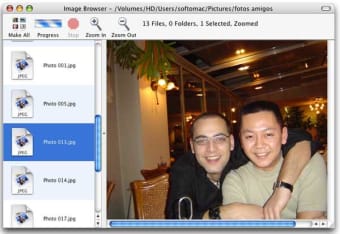
ImageBrowser is a program for viewing and organising images, movies and sounds. It makes it easy to move around the folders on your hard drive, using either the mouse or keyboard, and see all the image, movie, and sound files in each folder. When an image or movie file is selected it is shown in the ImageBrowser window, or can be opened in its own window. The list of files can be shown as thumbnails, making finding images easy.
Features:
Multiple file types
View any image format supported by OS X, such as JPEG, TIFF, PNG, PSD, GIF, and more. Also PDF files, quicktime movies, and sounds.
Multiple windows
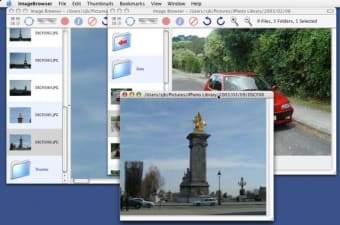
You can open as many browser windows as you need, each one operating independently so you can view separate folders in each one.
Thumbnails
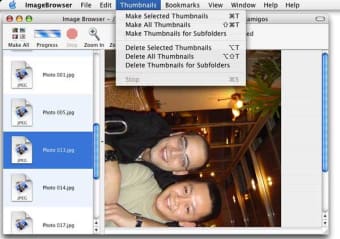
You can generate thumbnails for any image or movie file and they will be displayed in the list. Thumbnails can be shown in three size: Large, medium and small, or turned off.
File Operations
You can Rename, Delete, and Edit images/movies. Also create new folders, show file information, and show the file in the Finder. Copy the image or the image's name to the clipboard.
Batch Rename
Rename multiple files at once.
Editing
Open the image/movie in its default application, or select the application to load the file.
Drag and drop
Files can be moved between folders by dragging and dropping them on a different new folder. You can drag to folders in other ImageBrowser windows.
Bookmark folders
Make it easy to jump to the folder you want to browser by adding a bookmark to the Bookmark menu.
Multiple views
Images/movies can be view in different formats: actual size, or proportional size to fit the window. Scroll the image by dragging with the mouse.
Zoom and Rotate
Zoom in and out on images/movies, using a configurable zoom factor, and rotate images clockwise and counter-clockwise.
Keyboard Navigation
Control the program without using the mouse, or a combination of mouse and keyboard.
File Metadata
view and edit metadata, such as the EXIF data included in photos from digital cameras. You can also attach comments which are viewable in Finder.








.webp)